Dashboard
Overview
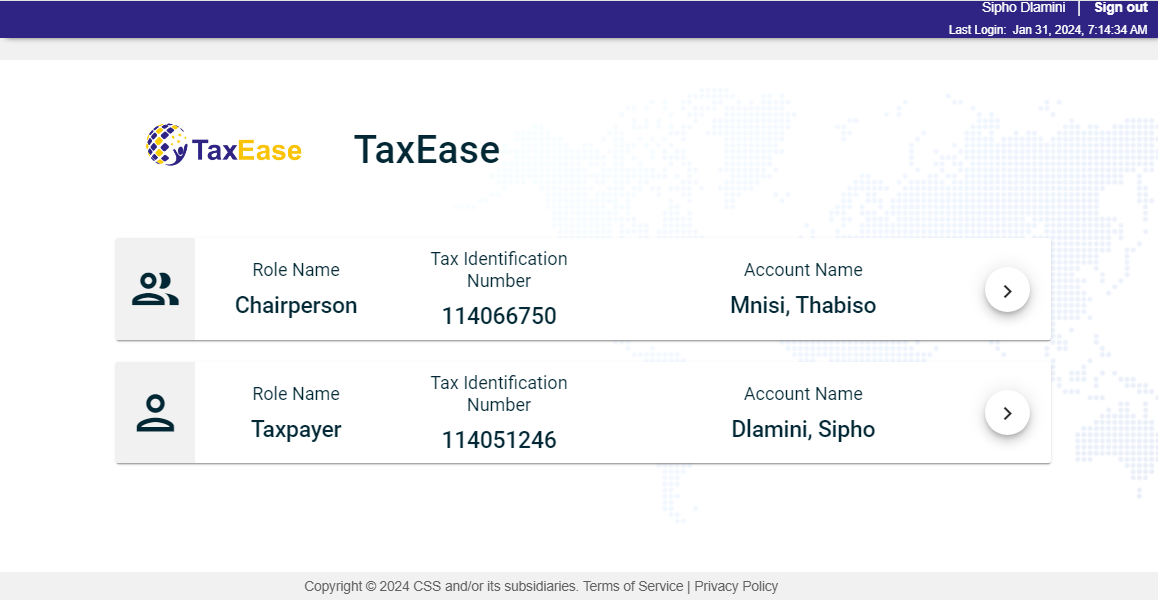
If your account has multiple TINs associated with it, the TIN selection page is displayed upon login. Otherwise, the ERS dashboard is displayed.
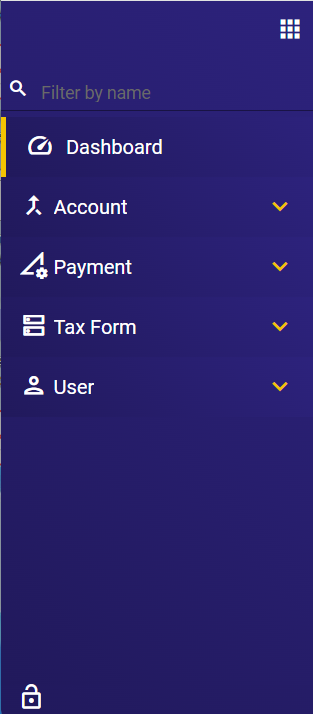
When you are on a different page and want to get back to the Dashboard, navigate to the left menu and click Dashboard.
TIN selection page
The TIN selection page shows all TINs associated with your email account, including their role names and registered names.
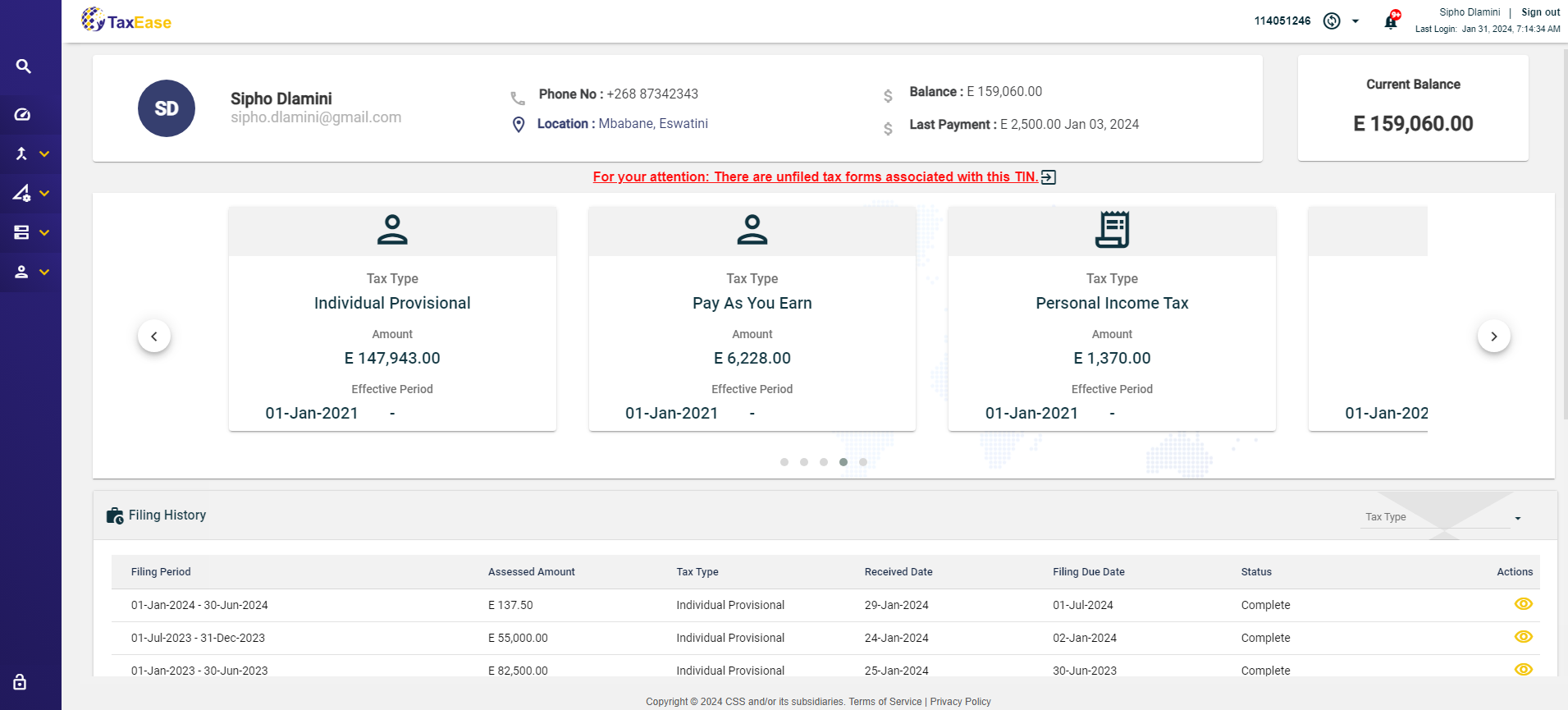
ERS dashboard
The ERS dashboard provides information about a TIN. It also displays the Tax Types associated with the TIN and its Filing History.
If you have any unfiled tax obligations, the message below is displayed. Clicking on the message will direct you to the Unfiled Obligations page.
For your attention: There are unfiled Tax Forms associated with this TIN.
Tax Types
All the tax types associated with the selected TIN in the TIN selection dashboard are also displayed in the dashboard. The tax type details, such as Amount and Effective Period, of all the associated tax types with the chosen TIN, are displayed.
References
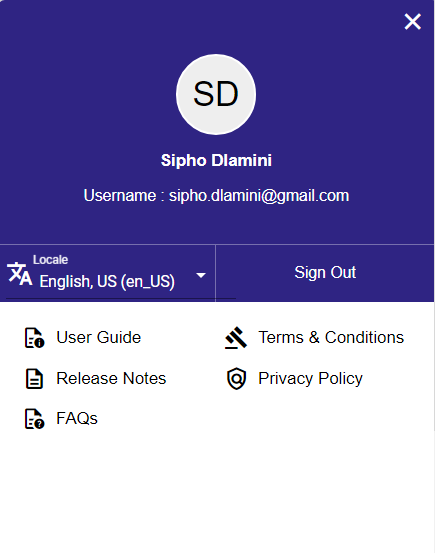
The CSS portal provides you with the following references.
- User Guide — describes each module and its features and functions.
- Release Notes — lists all fixed issues, new enhancements, and known issues.
- FAQs — lists all FAQs that are grouped per module.
- Terms & Conditions — contains the same terms and conditions you accepted when signing up.
- Privacy Policy — contains the same privacy policy you accepted when signing up.
To access these references, click on your name in the upper right corner of the portal.
Switch TIN
If you want to view the dashboard of a different TIN, select the TIN in the  dropdown list.
If your account is only subscribed to the portal and is associated with multiple TINs, you can switch the TIN by doing any of the following:
- Click on the TaxEase logo in the header and select a TIN from the TIN selection page.
- Click the
 on the left navigation and select a TIN from the TIN selection page.
on the left navigation will redirect you to the ERS dashboard.